How to convert a PDF page to SVG and check the result
Convert a PDF page to SVG, then check paths, text outlines and embedded images. Includes an inspected synthetic example and a practical handoff checklist.
To convert a PDF page to SVG, choose the page in a PDF-to-SVG converter, download the result, and compare it with the original in a browser and your intended design app. SVG is useful for vector diagrams, but changing the file extension does not turn a scanned page into editable artwork.
What SVG keeps—and what you need to check
SVG describes two-dimensional graphics using XML, as explained in the MDN SVG reference. Vector paths can scale without the pixel grid of a screenshot. An SVG can also contain raster images: a photograph embedded in the PDF still has a finite amount of detail.
| PDF content | What to check in the SVG |
|---|---|
| Chart lines and shapes | Edges, line thickness, clipping and overlapping objects |
| Text labels | Correct appearance and whether the letters are text or outlines |
| Scanned page or photograph | Readability at the final size; conversion does not trace the pixels into vectors |
| Several pages | Which page each output represents and whether every requested page is present |
Need a pixel-based image instead? See how to choose PNG, JPG or TIFF. Need to copy words from a scan? That is a separate text recognition and selection problem.
Convert one PDF page to SVG in AlphaPDF
- Prepare the original. Keep an unchanged PDF and identify the page by its file position. Printed page numbers can differ from the reader's position; use the page-number mapping guide if needed.
- Open AlphaPDF PDF to SVG. The live tool requires an account and paid access; this conversion is outside the free export allowance. Check current access and plan details before starting.
- Upload the PDF and select the page or range you need. Review the available settings. SVG output does not use a raster DPI setting.
- Start the job and save the result. Download it before the selected retention period expires. If the download contains several files, extract them and map each SVG back to its source page.
- Open the SVG in a browser, then in its destination app. Check the whole page first, then zoom into labels, curves, thin lines and page edges. Browser appearance alone does not establish how your design app will import it.
A checked synthetic example: vector lettering is not editable text
We inspected AlphaPDF's existing public synthetic input PDF and downloadable SVG result. Both files matched their published generation hashes. This was an inspection of the public example, not a newly submitted paid conversion.
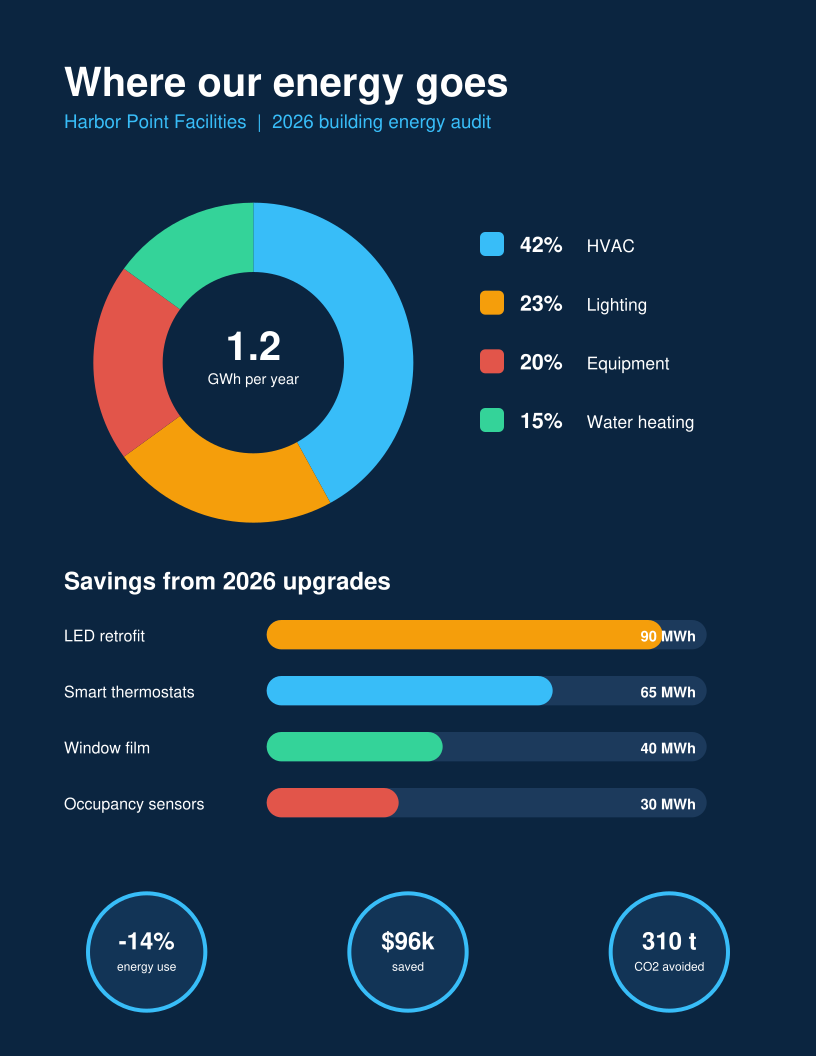
The SVG has a 612 × 792 coordinate viewBox. It contains path definitions and references, with no SVG text or image elements. Lettering in this example is drawn with shapes rather than editable text nodes. That illustrates a practical limit: a result can look like text without behaving like a text box.
For a hypothetical handoff of page 3 from a five-page report, record “source page 3 → chart.svg.” Check the chart title, every axis label, the legend and the smallest footnote against page 3. If a designer must change the labels, provide the original chart or source document too. Do not assume that importing the SVG will restore the original font settings or document structure.
Why a scan still looks blurry when enlarged
A scanned PDF is often a picture of a page. Wrapping that picture in an SVG does not invent new detail. If the source is blurry, look for the original drawing or a better scan. Use OCR separately when searchable words are the goal; it does not rebuild a drawing's vector geometry.
Check before using the result
- Confirm the correct page and all requested outputs are present.
- Compare text, symbols, colors, transparency and cropped edges with the PDF.
- Inspect the result at the actual size where it will be used.
- Check whether labels remain text or have become outlines before promising editability.
- Keep the source PDF and verify the imported result in the receiving app.
For a scalable page graphic, start with PDF to SVG and use these checks on the downloaded output. For a scan, decide first whether you need an image, searchable text or the original editable source.
Comments
Comments are reviewed before appearing here. Your email is never displayed.
No approved comments yet.
Join the conversation