PDF to Excel
An account and payment are required for PDF-to-JPG, all other converters and Premium tools. No free Premium jobs.
Compare free and paid accessExport detected PDF tables into an XLSX workbook.
Move detected PDF tables into an XLSX workbook for sorting and analysis. Each detected table becomes a worksheet rather than a picture of the whole page.
Non-tabular prose is omitted. Check merged cells, decimal separators and totals against the source; conversion does not restore the spreadsheet formulas that created a PDF.
Sign in to start
Premium processing keeps every input and result scoped to your own account.
Log inNew to AlphaPDF? Create an account
What it does
PDF to Excel looks for tables on each page and puts every table it finds on its own worksheet in an XLSX workbook. Rows and columns land in real cells, so you can sort, filter and add formulas straight away instead of copying numbers by hand. Paragraphs and headings around the tables are left out on purpose, which keeps the workbook clean.
When to use it
It is a good fit for bank statements, price lists, invoices with line items and reports that were exported to PDF by some other system. If you only have the PDF and need the figures in a spreadsheet, this saves a lot of retyping.
How to use PDF to Excel
- Sign in with an account that has Premium access.
- Upload .pdf files. Each file can be up to 50 MB, with up to 25 files per batch.
- Review the available settings and choose a 1, 7 or 30-day retention period.
- Start the job, then download and check the result before its retention period ends.
Before you start
Non-tabular prose is omitted. Check merged cells, decimal separators and totals against the source; conversion does not restore the spreadsheet formulas that created a PDF.
Tables without ruling lines, cells that span several rows and numbers written with a comma as the decimal mark need a second look. Formulas that produced the original numbers are not recovered, only their values.
Processing limits
Up to 50 MB per input; 25 files and 500 MB per batch. PDF limit: 2000 pages. Up to 2 active jobs per account. Output limit: 1000 MB. Renderer limits can reject especially large pages or images.
Example result
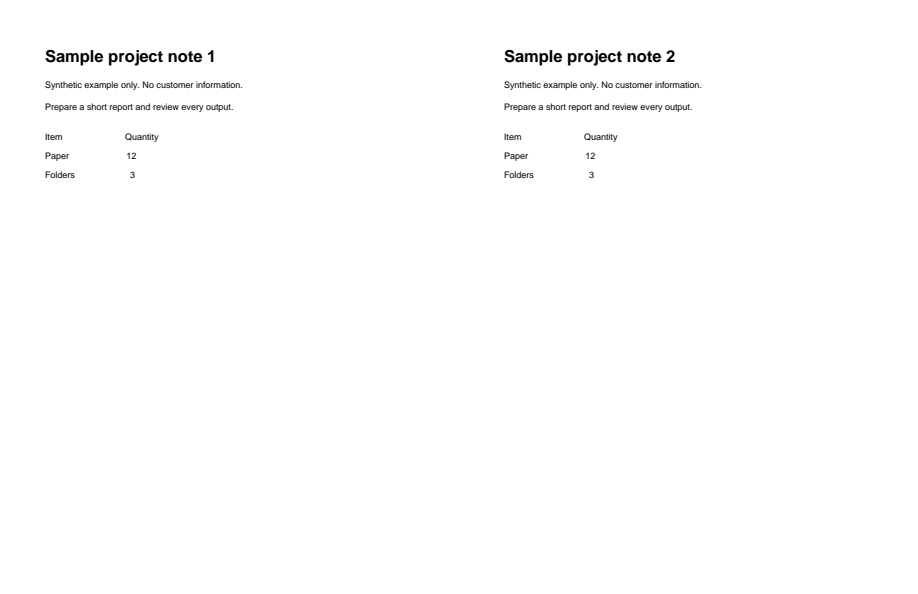
The sample rows were not detected as a table. The workbook reports “No tables found.”

Download example input · Download result
Example details & evidence
Actual Office output opened by LibreOffice and rendered to PDF for this layout capture; inspect in your target Office application too. The unruled sample rows were not detected as a table; the workbook reports No tables found.
Examples use synthetic files, not customer documents. Generation notes and SHA-256 hashes.
Common questions
What if my PDF has no tables?
The job still finishes, but the workbook will be empty or close to it. Use PDF to Word if you want the text instead.
Does each table get its own sheet?
Yes. Every detected table becomes a separate worksheet, named in page order.
Will totals still add up?
The values are copied as they appear, so they should. Check a few totals against the PDF anyway, especially where cells were merged.
Can it read a scanned statement?
For scans, Scanned PDF to Excel with OCR is the better choice. It recognises the page first and then looks for tables.