PDF to Word
An account and payment are required for PDF-to-JPG, all other converters and Premium tools. No free Premium jobs.
Compare free and paid accessExport a PDF to DOCX; review reconstructed content before use.
Reuse a report or letter in Word. Balanced mode keeps artwork while rebuilding text; editable mode is intended for rewriting paragraphs.
Layout-mode output uses page images. Reconstructed columns, fonts and line breaks may differ from the PDF; proofread before distributing the DOCX.
Sign in to start
Premium processing keeps every input and result scoped to your own account.
Log inNew to AlphaPDF? Create an account
Output quality is under review. This tool is not currently recommended as a reason to purchase Pro. Check all output against the source.
What it does
PDF to Word reads the text, headings and tables on each page and writes them into a DOCX file you can open in Word, LibreOffice or Google Docs. You pick how much of the page gets rebuilt. Balanced keeps pictures and artwork where they were and turns the running text into real paragraphs. Editable goes further and rebuilds as much as it can as plain Word content, which is what you want if you plan to rewrite whole sections.
When to use it
Use it when you have a report, letter or contract as a PDF and the original Word file is gone. It also helps when a colleague sends a PDF and asks for tracked changes, or when you need to lift a few pages into a new document without retyping them.
How to use PDF to Word
- Sign in with an account that has Premium access.
- Upload .pdf files. Each file can be up to 50 MB, with up to 25 files per batch.
- Review the available settings and choose a 1, 7 or 30-day retention period.
- Start the job, then download and check the result before its retention period ends.
Before you start
Layout-mode output uses page images. Reconstructed columns, fonts and line breaks may differ from the PDF; proofread before distributing the DOCX.
Two-column pages, sidebars and text wrapped around pictures are the usual trouble spots. Fonts that are not installed on the server are swapped for similar ones, so line breaks can move.
Processing limits
Up to 50 MB per input; 25 files and 500 MB per batch. PDF limit: 2000 pages. Up to 2 active jobs per account. Output limit: 1000 MB. Renderer limits can reject especially large pages or images.
Example result
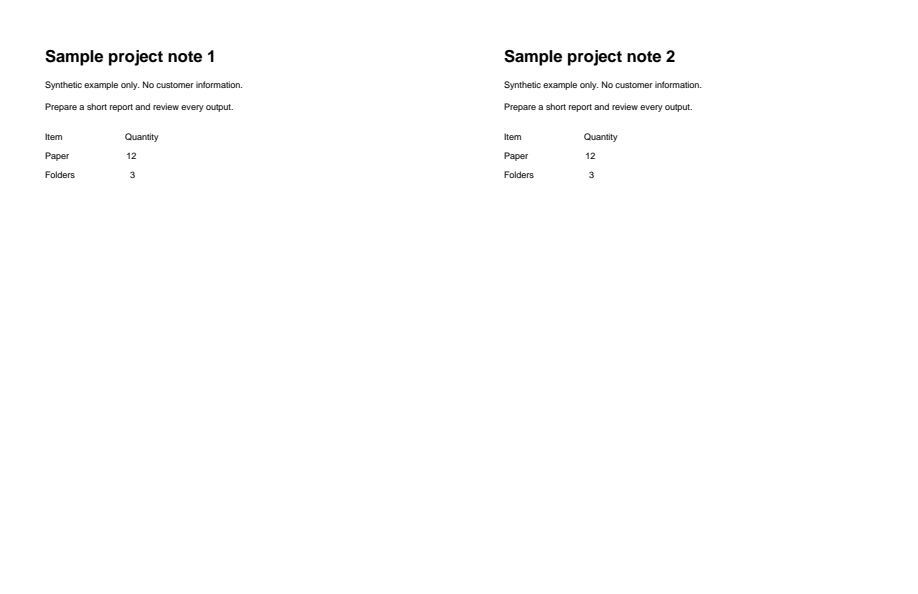
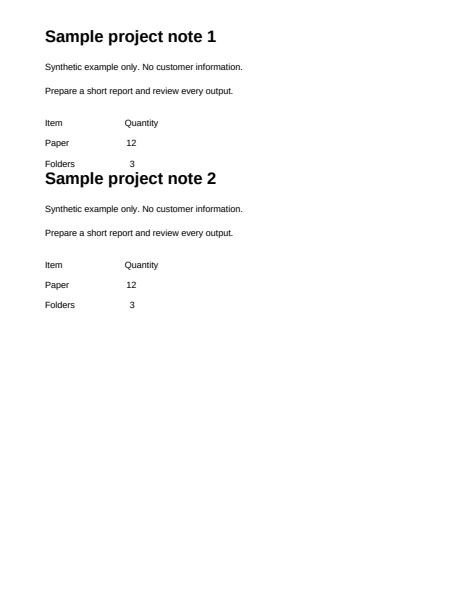
Both source pages flow onto one page; table-like rows remain text. Output quality is under review.
Download example input · Download result
Example details & evidence
LibreOffice layout capture: both source pages flow onto one page; table-like rows remain text. Quality hold remains.
Examples use synthetic files, not customer documents. Generation notes and SHA-256 hashes.
Common questions
Which mode should I pick?
Start with Balanced for most documents. Pick Editable when you care more about rewriting text than about keeping the page looking the same.
Will a scanned PDF work?
A scan has no text layer, so there is nothing to rebuild. Run it through Scanned PDF to Word with OCR instead.
Are tables kept as tables?
Tables that are drawn as clear grids usually come through as Word tables. Loose layouts made with spaces or tabs may turn into plain paragraphs.
Can I convert several PDFs at once?
Yes. Upload a batch and each PDF becomes its own DOCX in the same job.