How to make a PNG searchable as a PDF—and check the text
Add OCR to a PNG scan or screenshot, then test search, copied text and page layout. Includes a synthetic example and AlphaPDF’s current output-quality warning.
To make a PNG searchable as a PDF, use optical character recognition (OCR), then test the saved PDF by searching and copying its text. Simply putting the image inside a PDF does not prove that the words are searchable. Keep the PNG so you can compare the recognized text with the picture.
What changes when you add OCR?
A PNG stores a picture of the words. OCR attempts to recognize those words as text. A searchable-image PDF can display the scan while carrying a text layer for search and selection. Adobe explains this recognition step in its guide to recognizing text in scanned PDFs.
Recognition can be wrong even when the page looks readable. Searchability also does not prove that a table has reusable rows and columns, that a document is fully accessible, or that its wording can be edited like a Word file.
Prepare the PNG before recognition
- Keep an untouched original. Make a working copy for cropping or rotation.
- Check the smallest important text. Zoom in on names, dates and footnotes. If the image is blurred, obtain a clearer scan or source export when possible. Enlarging a blurred image cannot restore the missing detail.
- Straighten the page and retain its edges. Remove unrelated borders without cutting off text, punctuation or page numbers.
- Label multiple images in order. Names such as 01-cover.png and 02-summary.png make the intended sequence easier to check. Do not assume a batch download will be one combined file.
Use PNG-to-searchable-PDF with its current limits in view
AlphaPDF has a dedicated PNG to searchable PDF tool. At this review, its live page requires an account with paid access and warns that output quality is under review; it is not currently recommended as a reason to purchase Pro. The site also says plan purchasing is not available here yet. Check that page before relying on access. This walkthrough does not report a newly submitted conversion.
- If you already have access, open the tool and upload your PNG working copy.
- Choose the recognition languages that match the image, and review the available cleanup settings.
- Review the retention choice before starting. Keep your own copy of any result you need.
- Download the result and open the actual saved PDF. Check every image you expected to include rather than relying on the upload preview.
A worked check using the public synthetic example
The tool page supplies a synthetic PNG input and a sample PDF result. We inspected that existing public example, rather than submitting a paid job. The input places two report pages side by side in one image; its left panel includes a budget table and its right panel includes maintenance notes. The PDF contains an invisible text layer, but the page labels the low-resolution example as containing recognition errors.
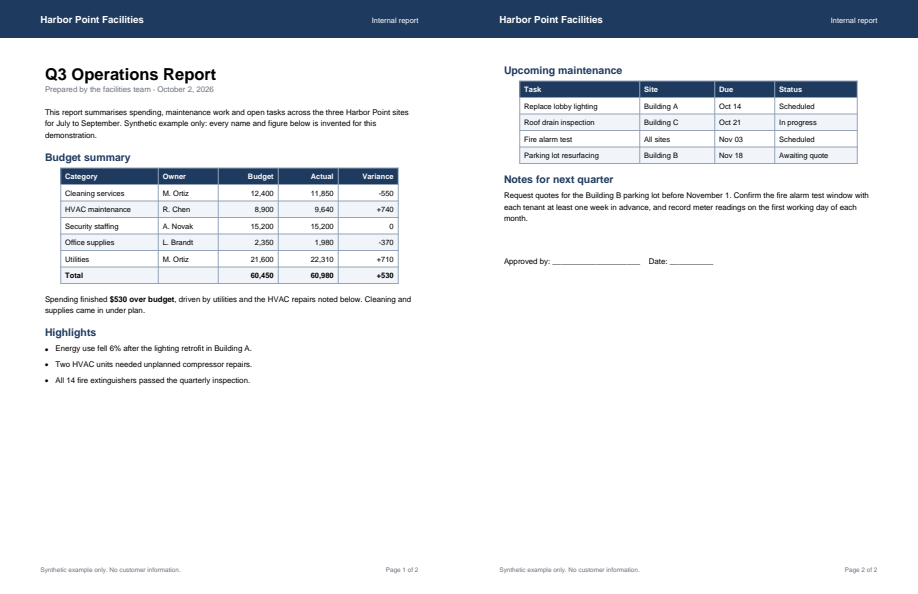
That makes it a useful checking exercise, not evidence of perfect OCR. Use the visible input as the reference for this review:
| Check | Reference in this synthetic image | What to do with a mismatch |
|---|---|---|
| Search a heading | Upcoming maintenance | If the heading is visible but search misses it, inspect the recognized text or retry from a clearer source. |
| Copy a number | The budget total is 60,450; the actual total is 60,980. | Compare every digit and separator. Do not paste an unchecked total into a spreadsheet. |
| Copy a line | A maintenance task and its corresponding site | Check that copying has not mixed columns or joined unrelated entries. |
| Check the page shape | Two report panels sit within one PNG. | Decide whether that wide image is usable for the recipient; printed page labels alone do not establish the PDF page count. |
Test the downloaded PDF before sharing
- Search a distinctive word from the top, middle and bottom of each page, using your reader’s Find command.
- Select and copy a complete line into a plain text editor. Compare spelling, spacing and reading order with the PNG.
- Proofread important values individually. Pay particular attention to names, reference codes, decimal points, minus signs and dates. Characters such as O and 0 can be confused.
- Check appearance and page order. Look for missing edges, sideways pages and omitted images.
- Repeat the search test after any later export or compression. Judge the final file you will send.
If text still cannot be selected, see why text may not be selectable in a PDF. If a later attempt to shrink the file makes the scan difficult to read, return to your saved source and consult the blurry-PDF compression guide.
When recognition is not good enough
Try a clearer source, correct the orientation and confirm the recognition language before retrying. Adobe’s scan enhancement documentation describes quality and recognition controls for Acrobat. Product settings differ, so use the controls available in your chosen application. For a file with persistent errors, retain the source image and do not treat copied text as a checked transcription.
Review AlphaPDF’s PNG-to-searchable-PDF example and current availability, then use the search, copy and visual checks above on any output you create.
Comments
Comments are reviewed before appearing here. Your email is never displayed.
No approved comments yet.
Join the conversation